

Documentation · Machines
Use the test machine
Install your completed medium in a virtual machine before using it on a computer.
since 0.9.7.6
Purpose
The test machine runs the same installation that a real computer would run later, with the accounts, applications, and settings you configured.
Availability
Your computer needs Hyper-V or VirtualBox. Hyper-V comes with Windows Pro and above. VirtualBox also runs on Windows Home.
Setup Foundry uses the option set under Default virtualization: in the settings. The Test Machine page does not ask.
The two switches for the "Hyper-V Administrators" group (in Settings under the prerequisites, and in the wizard) can be used in the Pro edition; in the Home and Free editions they are visible but locked. They are also locked on Windows Home, which has no Hyper-V; the test machine runs on VirtualBox there.
Steps
- Open the Test Machine page.
- Click Create test machine.
- Wait until the console opens and watch the installation.
- Use Connect network on the card to decide whether the machine may reach the network.
Result
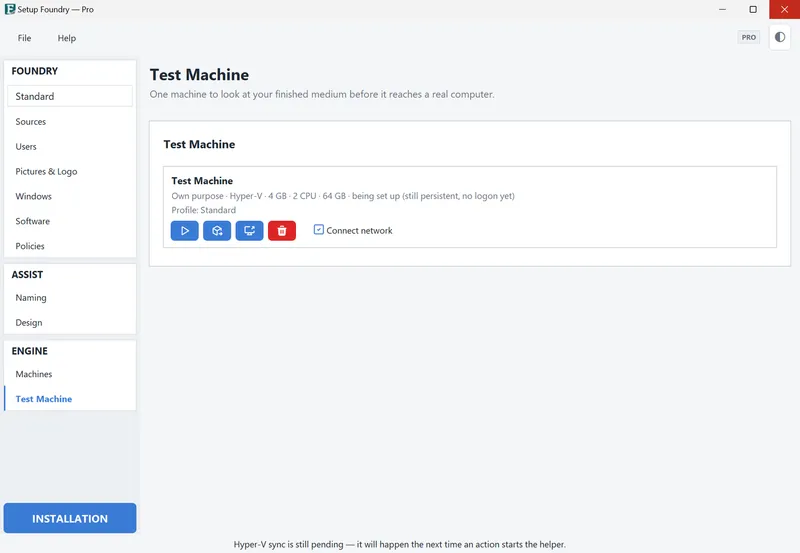
Setup Foundry creates the machine and reports: “The machine is being set up. Continue the installation in the console that just opened. Afterwards, sign in as “…”.” The message names the sign-in name.
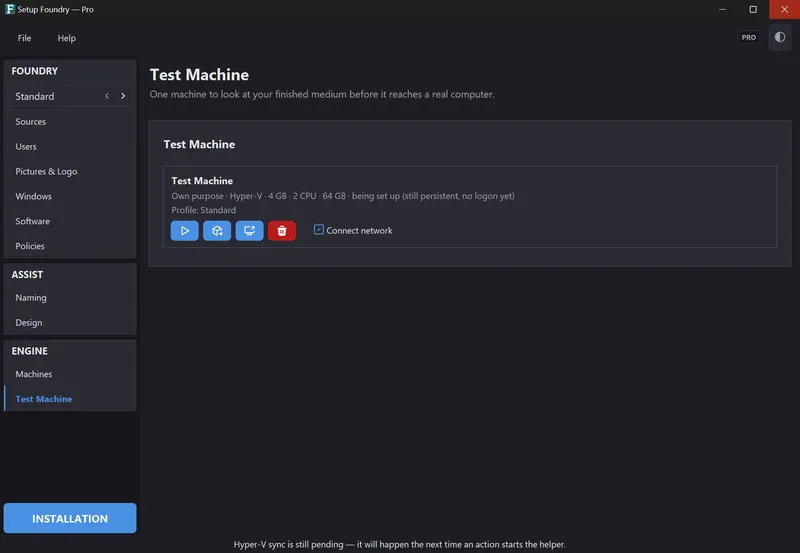
After that, the page shows a card named Test Machine. Its line contains the purpose, virtualization, memory, processor cores, disk size, and current state. Below it, it shows “Profile: …”.
Notes
Setup Foundry asks nothing while creating. It uses the purpose Custom purpose, the currently active profile, and the virtualization set in the settings.
The machine is installed from the profile's ISO, the same one that would go onto a drive. If the ISO is missing or older than your settings, Setup Foundry builds it first and reports: “The installation media is built first; the machine follows automatically once it is ready. Progress is shown in the page header.”
A medium counts as out of date when anything has changed since it was built: the software selection, the Windows source, services, tasks, images, drivers, the naming scheme, Office, security settings, policies or the credentials.
The console is a separate window: the Hyper-V window with Hyper-V, and the VirtualBox window with VirtualBox. Setup Foundry does not show a picture of it.
With VirtualBox, press the right Ctrl key to release the mouse and keyboard from the window. If Hyper-V is active on this computer, VirtualBox runs on the Windows Hypervisor Platform and is noticeably slower.
The state on the card reads not installed yet, installing, being set up (still persistent, no logon yet), ready, running, stopped, or failed. The card has the buttons Start, Stop, Open console, Pack the powered-off machine into an archive in “@Machines”., and Delete machine.
Delete a test machine to throw it away. Rolling back to a saved state is possible only on the “Machines” page, not for the test machine.
Important
A machine catches everyday mistakes, but it is not complete isolation. A shared folder, a password typed inside the machine, or a deliberately dangerous file can still reach beyond it. Treat it as a separate computer.
If it does not work
- Only one machine can be created at a time. Please wait for the installation to finish. Only one setup runs at a time.
- “The medium is older than your settings — a machine built from it would get stale credentials. Create the medium again, then continue.” Build the medium again.
- “The installed VirtualBox version is older than the supported minimum …” Update VirtualBox. The message names the minimum version, and the setup assistant offers Update VirtualBox… for it.
- “Your account is neither an administrator nor a member of the local “Hyper-V Administrators” group” The machine still runs, but Windows asks for credentials when the console opens. On request, Setup Foundry adds your account to the group, see Hyper-V permissions.
- The console for this machine can’t be opened in the app. The chosen virtualization offers no console window.
- Not found in hypervisor There is no machine with this name on the computer. The entry remembers how it was set up; Create builds it again the same way.