

Documentation · Machines
Create a machine
Create a virtual machine that installs from your medium and remains available for work or testing.
since 0.9.7.6
Purpose
Setup Foundry sets up the virtual machine with the same installation medium it creates for USB drives and ISO files. The machine remains available afterwards. You can work in it, test software, or restore it to a saved starting state.
Steps
- Open the Machines page under “ENGINE”.
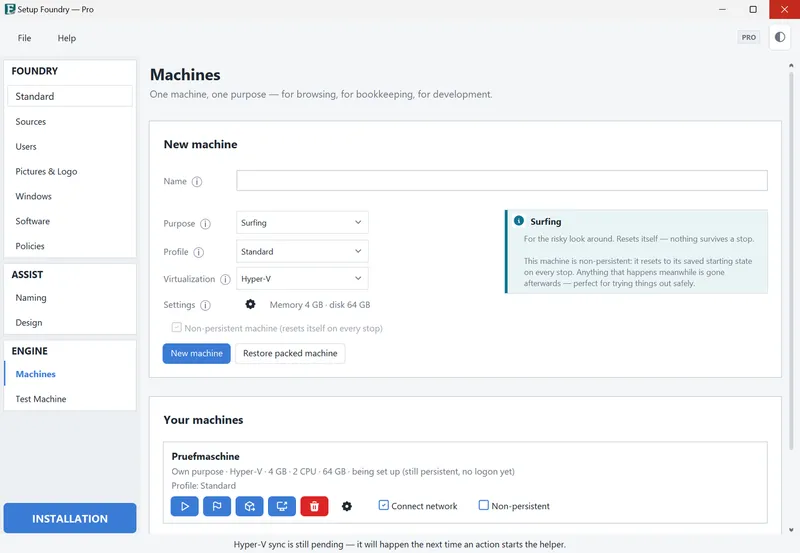
- In the New machine section, enter a Name. The name is the machine’s network name.
- Select a Purpose. It defines the memory, disk space, and processor cores.
- Under Profile, select the installation profile and, under Virtualization, select Hyper-V or VirtualBox.
- Click New machine.
- Complete the installation in the console that opens.
- On the card, select Setup finished: shut down, eject installation media, and save the current state as the baseline..
Result
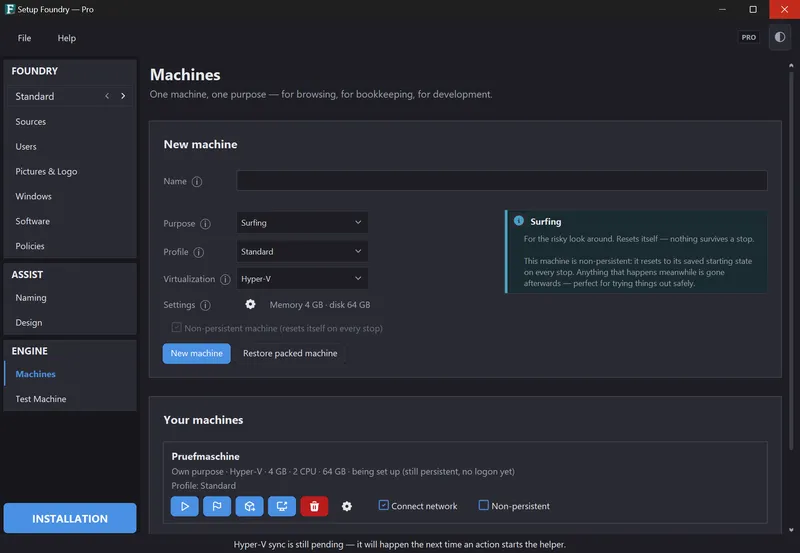
The machine card shows the purpose, virtualization, memory, processor cores, disk size, and status in one line. Below it, “Profile: …” is shown.
After you save the state, Restore the saved initial state and discard all changes. restores the machine to that state. Everything that has happened since then is lost.
Notes
Each purpose has preset settings. You can choose Web browsing, Bookkeeping, School, Development, Server, or Custom purpose. The selection also explains what the selected purpose is for.
Before you create the machine, use Settings to change the memory, disk space, and persistence. The current setting is shown beside it, for example “Memory 4 GB · disk 64 GB”.
The Non-persistent machine (resets itself on every stop) checkbox turns the machine into a disposable machine: “This machine is non-persistent: it resets to its saved starting state on every stop. Anything that happens in the meantime is gone afterwards. That is ideal for trying things out safely.”
For Web browsing, you cannot switch this off: “The surfing machine always resets itself; that is what it is for. This cannot be switched off.”
The starting state is created only when you select Setup finished: shut down, eject installation media, and save the current state as the baseline.. Until then, even a machine created as non-persistent remains persistent.
If the installation medium is missing or older than the settings, Setup Foundry creates it first: “The installation media is built first; the machine follows automatically once it is ready.”
Repair: after confirmation, stop, reset and restart the machine restores the checkpoint and then starts the machine.
Delete machine deletes the machine and all its contents. The confirmation asks: “Delete machine “…” and all its contents? This cannot be undone.”
Remove from the app list after confirmation. removes only the entry. This button is available only for a machine that the hypervisor no longer manages. The confirmation says: “This program does not know whether the machine is really gone, only that the hypervisor does not list it. If it still exists, it stays behind on the computer and can no longer be reached from here.”
The card also shows Start, Stop, Open console, Pack the powered-off machine into an archive in “@Machines”., and the Connect network checkbox. Use Shared folder to share a folder with the machine.
Restore packed machine restores a machine that was previously packed.
You can pack a machine only when it is shut down. If it is still running or its state cannot be determined reliably, Setup Foundry rejects the operation.
Setup Foundry also shows machines that were not previously managed through the application: “Existing machines taken into the list (…): …. They were running unmanaged. Nothing was deleted.”
If you start a non-persistent machine directly in Hyper-V Manager, it does not reset until the next time you start it from Setup Foundry.
Caution
A machine protects you from everyday mistakes: unusual websites and software you do not want on your own PC. It is not complete isolation. A shared folder, a password entered in the machine, or an intentionally dangerous file can still extend beyond it. Treat it as a separate computer, not as an invisible cage.
If it does not work
- Only one machine can be created at a time. Please wait for the installation to finish.: Machines are created one after another.
- “A machine named '…' already exists.”: Choose a different name.
- Not found in hypervisor: No machine with this name exists on the computer. It may have been deleted or renamed in Hyper-V. You cannot distinguish between these cases here. The entry retains how it was configured. Select Create to recreate it in the same way, or use the trash can to remove the entry.
- “The media is older than your settings. A machine built from it would get stale credentials. Create the media again, then continue.”: Create the medium again.
- “Your account is neither an administrator nor a member of the local group “Hyper-V Administrators””: The machines still run. When you open a console, Windows asks for credentials. On request, Setup Foundry adds your account to the group, see Hyper-V permissions. The link “Go to the Hyper-V group settings” under the hint leads to the switches in Settings; in the Home edition they are locked there.
- “Synchronization with Hyper-V is pending. It will run with the next action that starts the helper program.”: The sync runs with the next action.
- The console for this machine can’t be opened in the app.: The selected virtualization does not provide a console window.