

Documentation · Getting started
How it works
What happens between building the medium and a fully set up Windows, in six stages.
since 0.9.7.7
Purpose
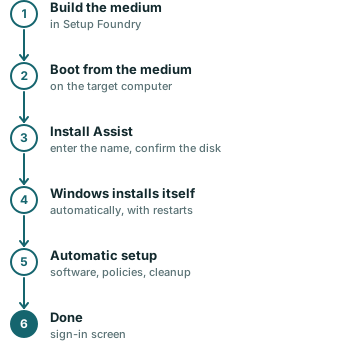
The process from creating the medium to a fully configured Windows installation has six stages.
Steps
- Build the medium. On the Installation page in Setup Foundry, build the medium with Windows, your settings, and the selected software.
- Boot from the medium. Insert the USB drive into the target computer and start the computer from it.
- Install Assist. The assistant on the medium asks for the computer name, shows the connected disks, and asks you to confirm erasure and reinstallation.
- Windows installs itself. Wait while Windows installs automatically with no further questions and restarts several times.
- Automatic setup. After Windows installs, wait while the medium installs software, applies policies, removes preinstalled packages, and restarts the computer.
- Done. When the sign-in screen appears, sign in with the administrator account you set in Setup Foundry.
Notes
Caution
During stages 4 and 5, leave the computer to work. Do not switch it off, even when it appears to be only restarting. The restarts are part of the process.
The target computer does not need internet during setup. The software comes from the medium.