

Documentation · Foundry
Sources
The page where you manage and pick your Windows sources.
since 0.9.8.1
Purpose
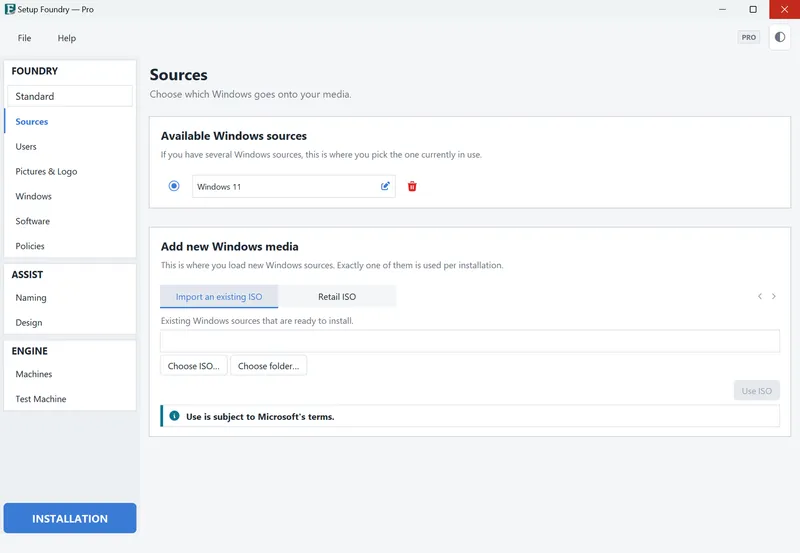
The Sources page is in the Foundry section of the sidebar. Below the title, you see Choose which Windows goes onto your media.
A Windows source is the Windows that Setup Foundry uses to build the installation medium. Each installation uses exactly one source.
You can also add Windows sources in the setup wizard, in the Windows sources step. Use the Sources page to add them while the program is running.
Steps
Select an existing Windows source
Under Available Windows sources, the app says “Select the Windows source to use.”
- Select the radio button in the row you want.
Exactly one row is selected. It is the source for the installation profile currently set.
If no source is present, the page shows No Windows source yet. Add one under “Add a new Windows source” below.
Change the display name
- Click Change display name on the source.
- Enter the new name in New Windows source name.
The display name is only the label in this list.
Delete a source
- Click Delete Windows source on the source.
- Confirm the question “Delete Windows source “…”? Its folder in the work folder will also be removed.”
Catalog a source
A source that is not catalogued has — not cataloged after its name. Click Catalog now beside it.
While cataloging runs, the page shows Reading the Windows source contents in the background. The status bar shows progress.. If an error occurs, it shows “Cataloging failed: …”.
Cataloging reads which Windows editions the source contains. Cataloging is possible in every edition.
Add new Windows media
Under Add a new Windows source, the app says “This is where you add new Windows sources. Each installation uses exactly one of them.”
Both tabs are available in Setup Foundry Free, Home and Pro.
Import an existing ISO
-
Open the Import an existing ISO file tab.
-
Click Choose ISO… and select an ISO file in the Select a Windows ISO file dialog. Or click Choose folder… and select a folder in the Select a folder containing an extracted Windows ISO dialog.
-
Click Use ISO.
The selected path appears in the field. You cannot type in this field. Use ISO becomes available only after a path is present.
At the foot of the tab, the app says Microsoft’s terms apply to Windows and the download.
Retail ISO
- Open the Retail ISO tab.
- Choose the edition at Edition:.
- Choose the language at Language:.
- Click Check availability again when needed.
- Click Use ISO.
The collapsed Microsoft restrictions notice reads: “Microsoft may block direct retail ISO downloads at any time. If this happens, download the ISO file from Microsoft: …. Then add it using “Import an existing ISO file”.”
After you click Use ISO, the source is added in the background. The page shows Import or download is running in the background. Progress appears below; “Use ISO”, “Create Media”, and “Test Machine” are disabled until it finishes.. While a job runs, the Use ISO buttons are disabled. When it finishes, the source appears under Available Windows sources.
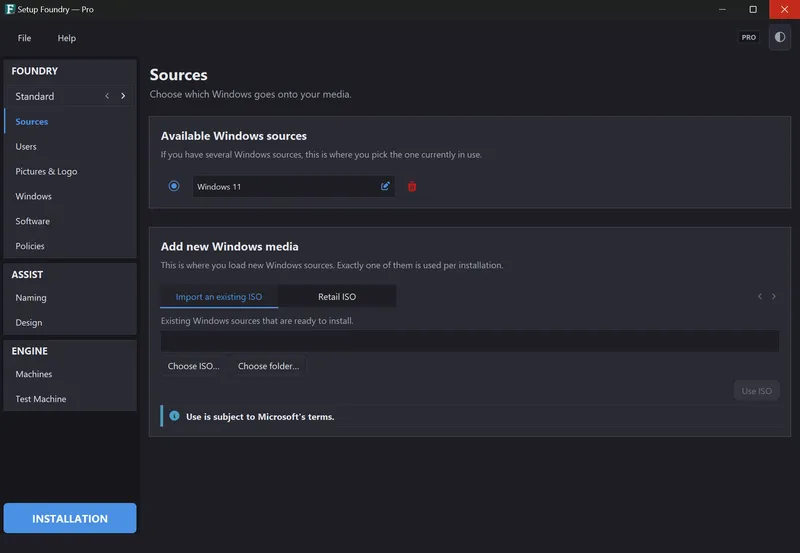
Result
The selected Windows source is used for the installation profile currently set.
Newly added sources appear under Available Windows sources when they are finished.
Notes
An aborted or interrupted import leaves an incomplete folder. Setup Foundry reports the number of incomplete imports. They are not listed for selection and are not deleted automatically. See the log for details.
If it does not work
- A source does not appear in the list. The import was aborted and is reported as an incomplete import. Start the import again.
- Retail ISO offers no choices. Click Check availability again. Microsoft can block this path at any time; use Choose ISO… instead.
- A source has — not cataloged after its name. Click Catalog now.