

Documentation · Foundry
Policies
Security settings included on the medium and how to omit a policy package.
since 0.9.7.14
Purpose
Every installation medium that Setup Foundry creates includes security settings for Windows. These settings are grouped into eleven packages. The sections below describe each package.
Office hardening
This package hardens Word, Excel, PowerPoint, Outlook, and the other Office programs. It protects Office against common risks from files, email, and network folders. It is intended for devices with Office; it changes nothing if Office is not installed on the device.
Edge and Internet Explorer
This package hardens Edge and the old Internet Explorer components that Windows and other programs still use for web content. Protective features and security settings for displaying web content remain enabled. It is intended for every device; old web applications that require ActiveX do not run with it.
Virus protection and attack surface
This package configures Microsoft Defender and enables the attack surface reduction rules. It restricts common paths used to attack Office, email, scripts, and drivers. It is intended for every device; your own scripts and administration tools may need a configured exception.
Network and file sharing
This package configures the firewall, file sharing, and remote access. It prevents insecure network connections and unwanted access to the device. It is intended for every device; very old NAS devices, network printers, and scanners may need a configured exception.
Privacy and telemetry
This package reduces the data that Windows reports to Microsoft and cloud services, and disables advertising and suggestions. It is intended for every device; local search remains available but no longer keeps a history.
Logging and auditing
This package extends Windows logging so incidents can be traced afterwards. It records additional security events and provides more space for logs. It is intended for every device; the logs require additional space on the system drive.
Sign-in and accounts
This package configures sign-in and the rights of signed-in accounts. It requires protection at sign-in and before system changes, and disables old, insecure sign-in methods. It is intended for every device that can be left unattended; User Account Control prompts appear more often. After ten wrong passwords, Windows blocks sign-in for two minutes; there is no permanent lockout.
Devices and removable media
This package controls how devices connect and how printer drivers are installed. It prevents automatic actions from removable media and restricts the installation of vulnerable drivers. It is intended for every device; setting up a printer then requires administrator rights.
Kernel protection
This package enables the protections that Windows provides together with the hardware. It is intended for devices whose hardware supports this; older software and older drivers may not run with it.
Drive encryption
This package defines how drive encryption works after it is enabled. It keeps new devices with direct memory access blocked while the PC is locked, but does not enable encryption itself. The package does not set an encryption method; Windows chooses it itself, normally XTS-AES. It is intended primarily for notebooks; some docking stations can only be connected after sign-in.
Windows Update
This package configures how Windows obtains and installs updates. It sets up automatic updates and limits the sharing of update data to the local network. It is intended for every device; after installation, the device restarts on its own.
Availability
By default, all eleven packages are included on the medium in every edition.
In Setup Foundry Home and Pro, you can deselect individual packages. Free does not offer this selection; its media always include all eleven packages.
The policy editor below the package selection is available only in Setup Foundry Pro. Quick policies are available in every edition.
Steps
Omit a package (Home and Pro)
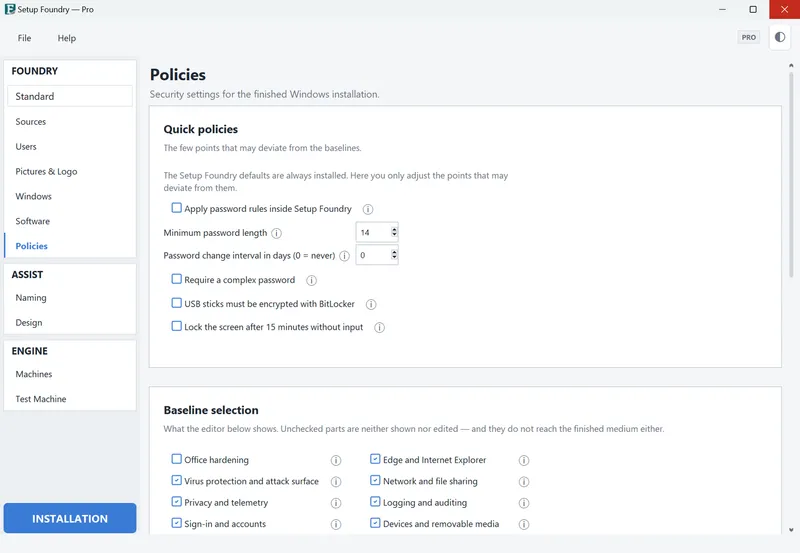
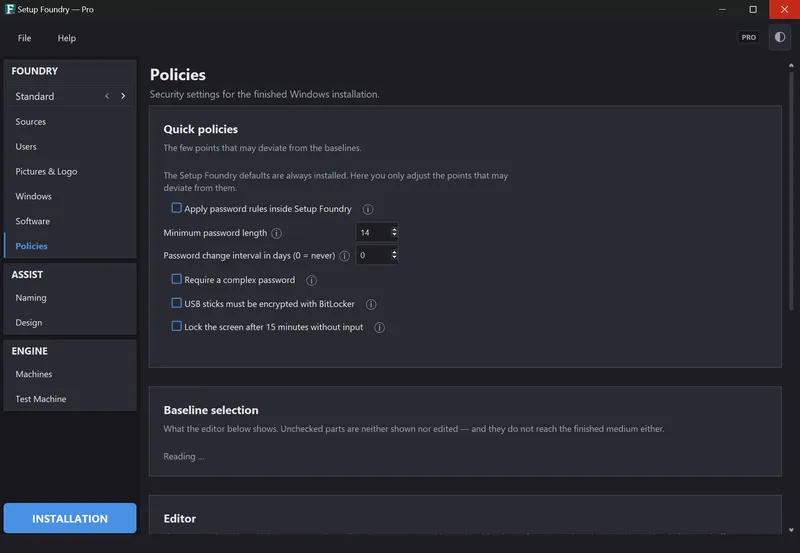
- Open the page Policies.
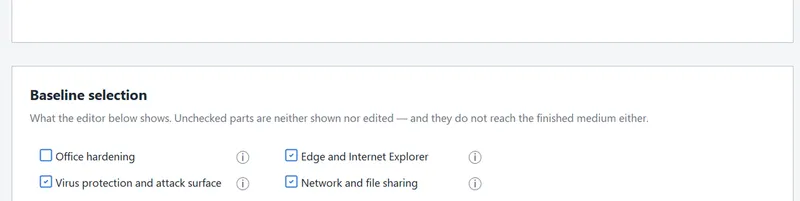
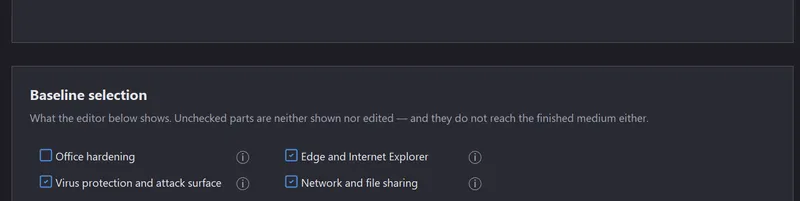
- Under Security settings, clear the checkbox for each package you want to omit from the medium.
- Build the medium as usual.
The selection belongs to the currently active profile. It applies to every medium you build with that profile afterwards.
Result
The medium carries only the checked packages. A cleared package also disappears from the editor below. You can no longer edit its settings there.
Notes
Quick policies
The topmost section of the page is called Quick policy settings.
The default settings from Setup Foundry are always installed. Here, you can change only the settings for which deviations are allowed.
- Minimum password length is a number box. Its default is 14.
- Password change interval in days (0 = never) is a number box. Its default is 0.
- Write only to BitLocker-encrypted USB drives is off by default.
- “Lock the screen after 15 minutes without input” is off by default. None of the eleven packages sets a screen lock.
- “Apply password rules inside Setup Foundry” is off by default. When you switch it on, the set minimum length and the complexity rule also apply to Setup Foundry's own password fields: the administrator password and user management.
- Require a complex password is off by default. Today, this rule works inside Setup Foundry only, not on the finished Windows installation.
Important
The Setup Foundry defaults and its privacy settings are always on the medium, in every edition. They are not part of the eleven packages and have no checkbox. Office hardening follows the software selection from Home upwards. If no Office is selected for the profile, its box starts unchecked, and the page says: “Office is not selected for this profile, so Office hardening is disabled by default. You can still select it.” Whoever checks it keeps it checked. A Free medium has no checkboxes and always carries Office hardening.
Editor (Pro only)
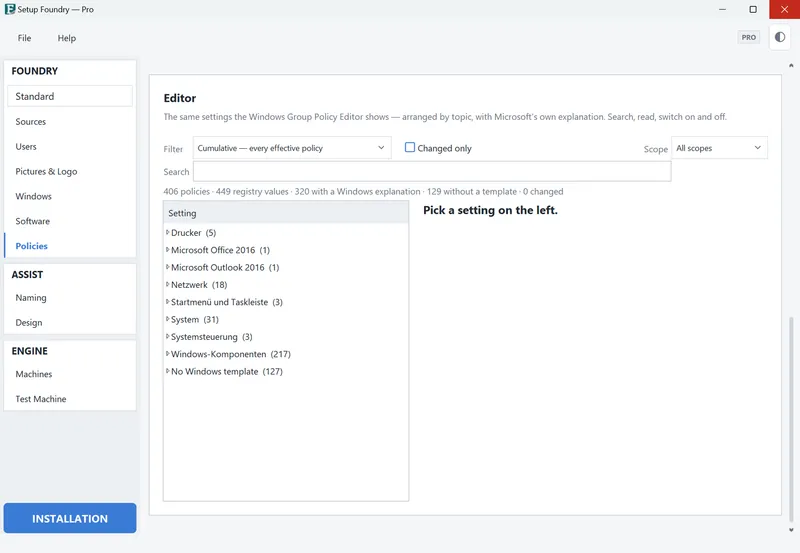
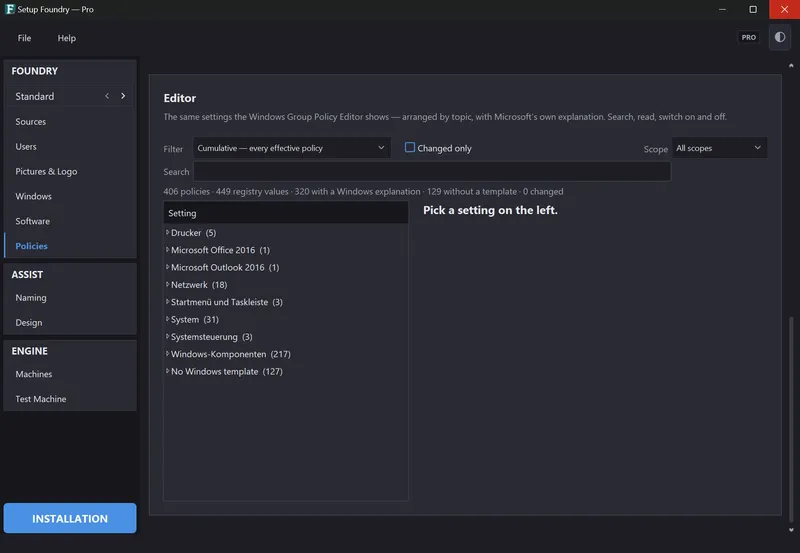
The section below the package selection is called Editor. Below it is: “The same settings as in the Windows Group Policy Editor, arranged by topic and with Microsoft's own explanation. Search, read, switch on and off.”
The editor has a filter, a checkbox Changed only, a Scope list, and a search box. A line above the list counts how many policies, registry values, and Windows explanations are present, and how many settings were changed.
If it does not work
When something is missing after the installation, first leave out the package that fits best.
- An old NAS, printer, or scanner can no longer be reached: Network and file sharing.
- A docking station only works when you attach it after sign-in: Drive encryption.
- Old software or an old driver does not start: Kernel protection.
- Your own scripts or tools are blocked: Virus protection and attack surface.
- A printer cannot be set up: Devices and removable media.
Test the selection on a test machine before you build the next medium.