

Documentation · Installation
Create VHD
Build a virtual disk for Hyper-V and test VMs from your configuration.
Only Pro · since 0.9.8.1
Purpose
A VHD is a virtual disk for Hyper-V and test VMs. It needs no physical medium. Building it does not erase anything; it creates a file.
Availability
The Create VHD card belongs to Setup Foundry Pro.
In Setup Foundry Free and Home, a locked box appears in the same place. Its title is Virtual disk (VHD). It says Virtual disk (pe.vhdx) for installing Windows in Hyper-V and “— not available in this edition”. There is no button.
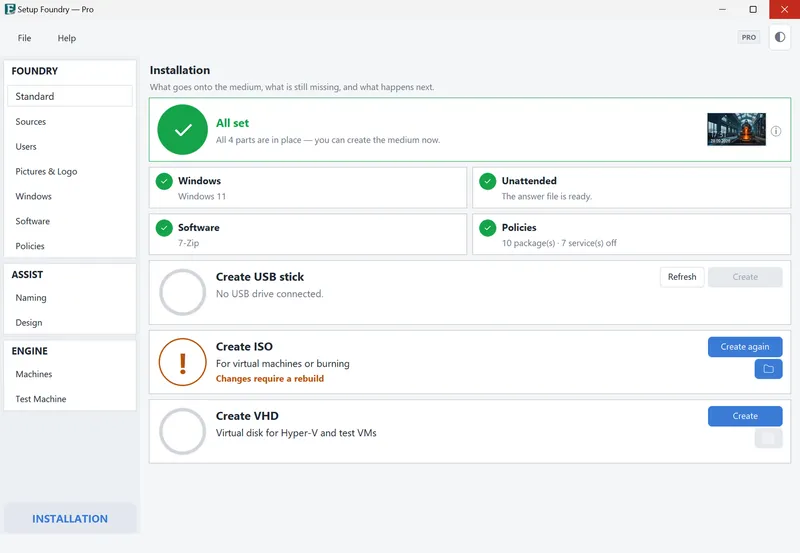
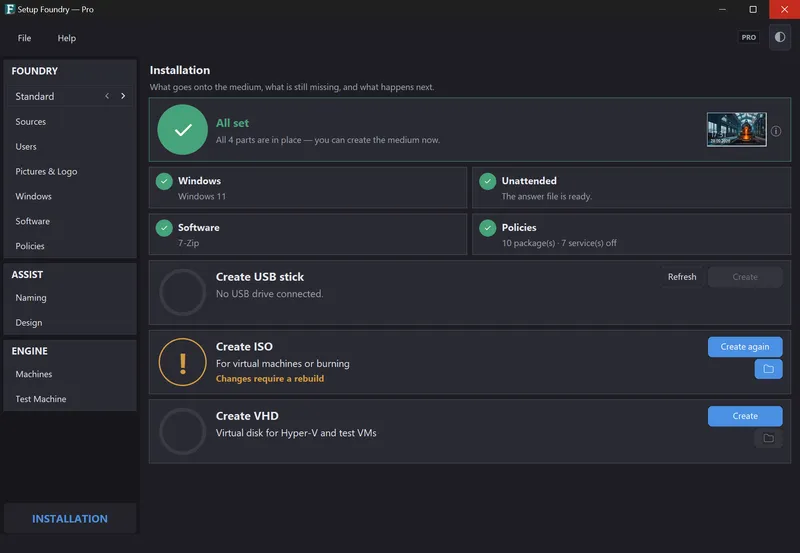
The card is on the Installation page. It is the third of three cards: Create USB drive, Create ISO, and Create VHD. It shows a ring, the title Create VHD, the sentence Virtual disk (pe.vhdx) for installing Windows in Hyper-V, and the Create button on the right. The folder symbol Open folder sits below that button. After the build, the VHD location appears in the line below the card.
Steps
- Open the Installation page.
- Click Create on the Create VHD card.
The build runs in the background. You can keep working.
The ring fills and shows progress as a percentage. Below it, you see how long the build has been running. The card names the current step, for example Preparing your work folder, Checking the boot image, or Copying Windows files (longest step).
Setup Foundry builds only one medium at a time. While a build runs, the buttons on the other cards are disabled.
Result
Setup Foundry creates a file with the .vhdx extension in the @VM folder of the installation profile. The VHD is 64 GB by default.
After the build, the card turns green and reports “Created in …”. The file path appears in the line below the card. Click Open folder to open the folder. From the second build onward, the button reads Create again.
Attach the VHD to a virtual machine and boot it from there.
Notes
The build needs drive letters A: and B: to be free. It uses them temporarily for the VHD's two partitions.
The new VHD is first built under a working name. It replaces the existing VHD only when it is finished. If the build fails, the existing VHD remains untouched.
Before the build, Setup Foundry checks whether the content fits in the VHD. If it does not, the build stops before anything is written.
In Setup Foundry Pro, the test machine boots directly from the VHD when the installation profile has a finished VHD. Without a VHD, it boots from the ISO.
When the VHD no longer matches the profile, the card's ring turns orange and the line below reads Changes require a rebuild. The rule is the same as for the ISO: every saved change that affects the medium makes it out of date, and undoing the change or rebuilding turns the card green again.
If it does not work
- The build stops at once with “These drive letters are in use: …. Please unplug the USB drive. Creating the VHD file needs these letters to be free.” Unplug the USB drive or disconnect the drive holding A: or B:, then click Create again.
- The build reports that the content does not fit into the VHD. Choose fewer programs.
- The Create button is grey. Another media job is already running.
- The card turns orange and names an error. Below it is Please try again.