

Documentation · Installation
Creating an ISO
Writing everything you set up into a single ISO file instead of onto a drive.
since 0.9.7.6
Purpose
An ISO file is installation media for virtual machines, mounting, burning, and sharing. The ISO file and USB drive install the same Windows from the same configuration. Use the USB drive for physical PCs and the ISO file for virtual machines or sharing.
Steps
- Open the Installation page.
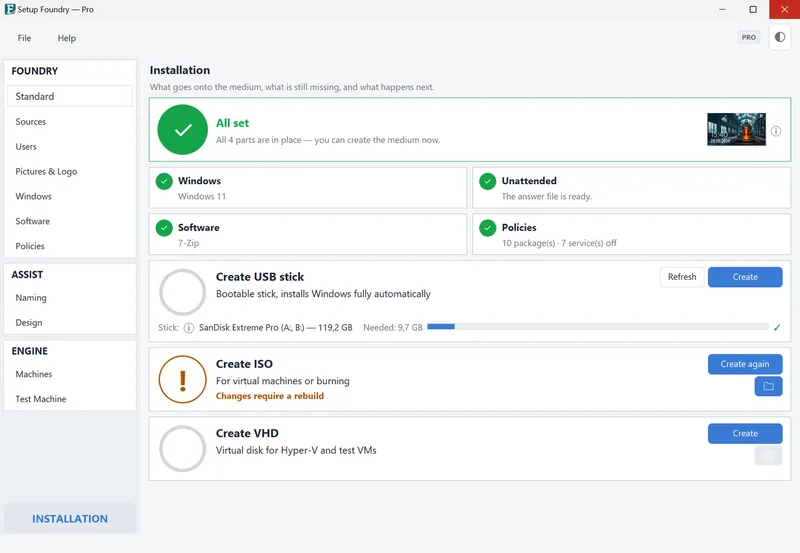
- Select the Create ISO card.
- Click Create.
The build runs in the background. You can continue working while it runs.
Result
After the build, Setup Foundry reports completion, shows the path to the ISO file, and provides a button to open the folder.
Notes
No drive is erased during the build.
The test machine requires this ISO file. If it is missing, Setup Foundry creates it when the test machine starts.
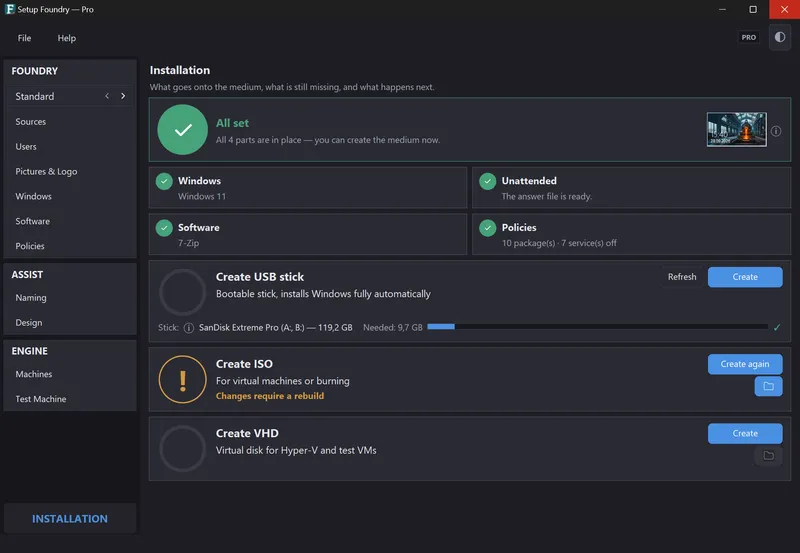
When the ISO no longer matches the profile, the card's ring turns orange and the line below reads Changes require a rebuild. This happens shortly after you save a change to the software selection, Windows source, services, tasks, images, drivers, naming scheme, Office, security settings, policies or credentials. Undo the change or build the ISO again and the card turns green again.
Setup Foundry builds only one medium at a time.
During the build, the content is assembled once and then written into the ISO. For a while it therefore needs about twice as much free space as the finished medium. Afterwards the temporary folder is deleted.
If it does not work
- The build stops as incomplete: A part is missing from the work folder. The message names it. No partially built ISO file remains. Go through the setup steps again.