

Documentation · Setup in detail
Import an ISO
Use an existing Windows ISO as the source for the remaining setup steps.
since 0.9.7.6
Purpose
A Windows source provides the basis for the accounts, applications, and settings in the installation. Use the setup wizard to add a Windows ISO file already stored on this computer.
Steps
Windows sources enter through the setup wizard in the Windows sources step. Add further sources later on the Sources page.
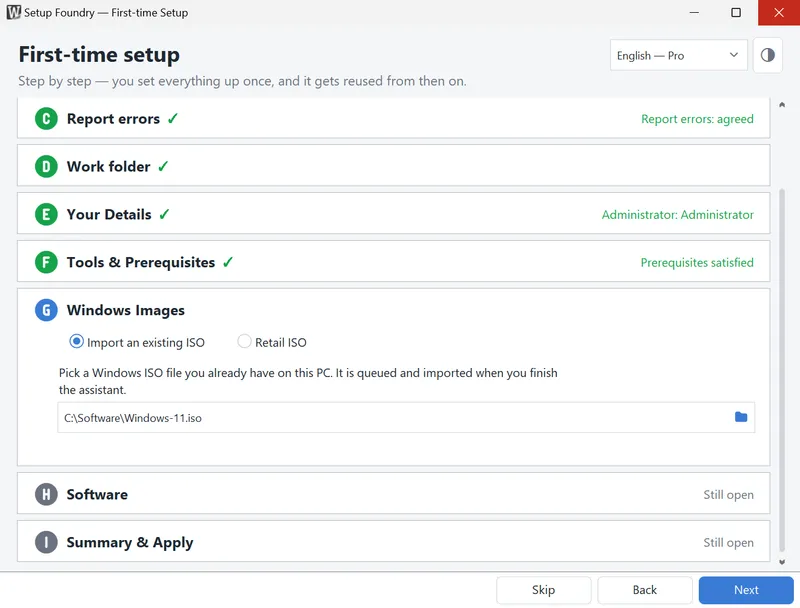
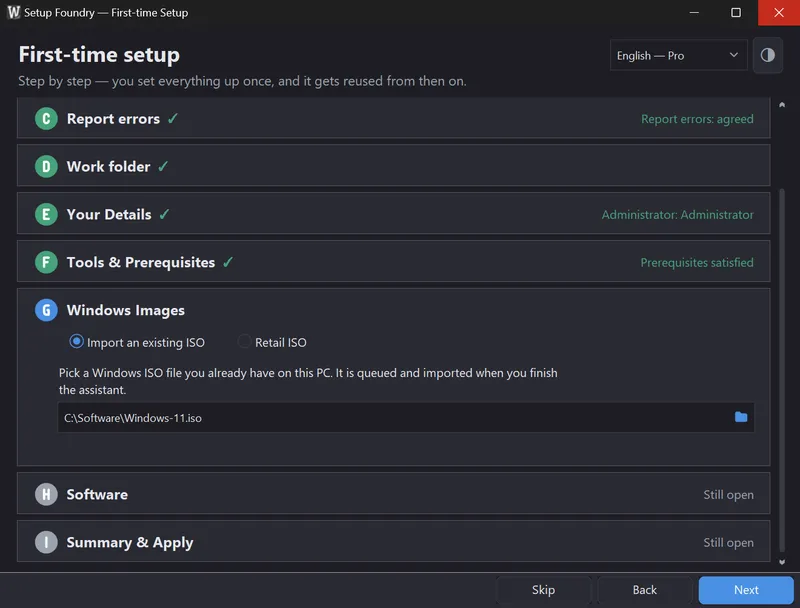
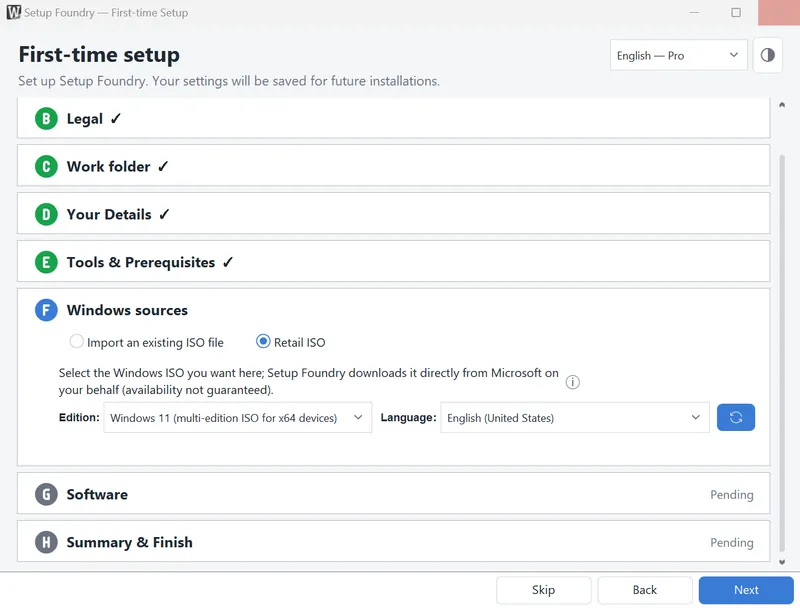
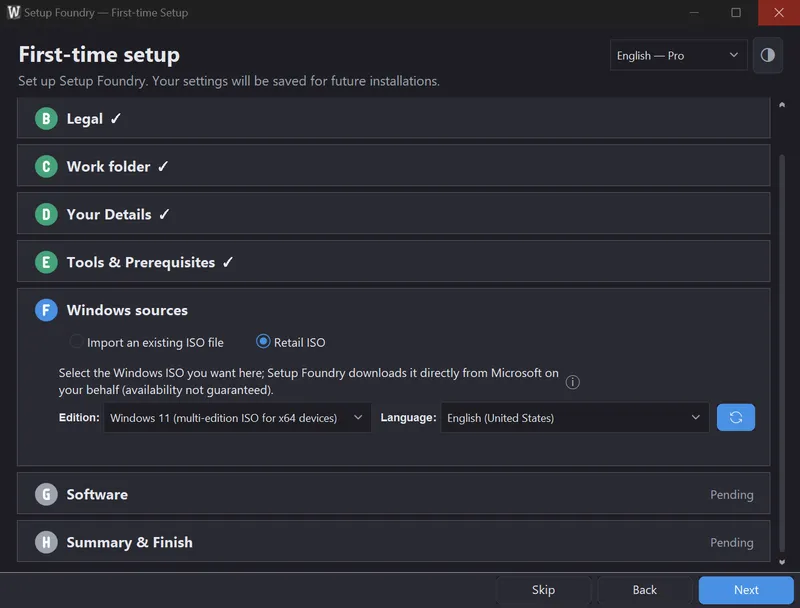
The Windows sources step shows these two sources as radio buttons side by side:
Import an existing ISO file
Retail ISO
- In the setup wizard, open the Windows sources step.
- Select Import an existing ISO file.
- Click the folder icon inside the path field.
- Choose an ISO file in the Select a Windows ISO dialog.
- Click Next to record the selection.
You cannot type in the path field. Use Next to record your selection.
Import an existing ISO file imports an ISO file already stored on this PC.
To use the other source, select Retail ISO. It downloads an official ISO directly from microsoft.com instead of importing a file you already have. Wait for the Edition: and Language: lists to populate. Select values from both lists. Click the icon beside the lists to check availability again.
Below Retail ISO, the note Microsoft restrictions states that Microsoft restricts direct downloads. This source can be blocked at any time without warning. You can download the ISO directly from Microsoft and add it through Import an existing ISO file.
Result
The step shows the sources that are queued. Setup Foundry runs the import at the end of the wizard, not immediately.
Afterwards, the source appears under Available Windows sources on the Sources page. You can select it there.
Notes
Both sources are available in every edition.
Setup Foundry does not change the ISO file. It mounts the file read-only, copies its contents into the work folder, and dismounts it again.
The source uses the ISO file name as its display name. You can change the display name on the Sources page.
Setup Foundry does not resume an aborted import. It copies from the start on the next attempt.
Choose only files with the .iso extension.
The Sources page also provides Choose ISO… and Choose folder…. Choose folder… takes an already unpacked Windows source. Click Use ISO there to accept the selection.
On the Sources page, you can rename and delete every source. Deleting a source also removes its folder in the work folder.
If it does not work
- “File not found: …”: Check whether the file was moved or renamed, or whether the drive is connected.
- “Not an .iso file: …”: Choose a file with the .iso extension. Use Choose folder… on the Sources page for an unpacked folder.
- “This Windows source is incomplete. Missing files: …”: Files are missing from the unpacked Windows source. The message names them.
- The retail list stays empty: Click the icon beside the dropdowns to check availability again. If the list stays empty, fetch the ISO from Microsoft and add it through Import an existing ISO file.
- The Sources page reports incomplete imports: Aborted imports are not offered and are not deleted automatically. See the log for details.