

Documentation · Foundry
Selecting applications
Choose the applications that should be installed when Windows setup is complete.
since 0.9.7.6
Purpose
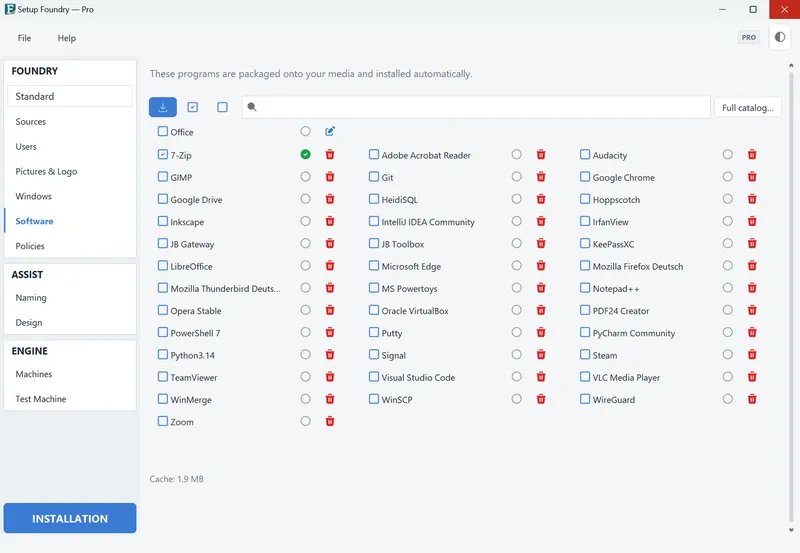
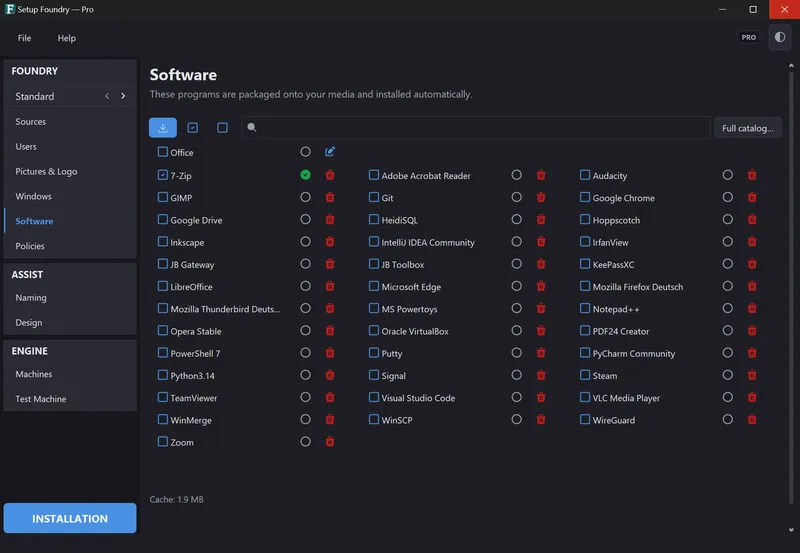
Use the Software page under “FOUNDRY” in the sidebar to decide which applications are installed on the target PC when Windows setup is complete. Below the page title, you see: Selected apps are installed automatically after Windows.
Setup Foundry downloads the installers in advance and stores them on the medium. If an application needs other packages according to winget, such as a runtime library, they go onto the medium too and are installed before the application.
Availability
The Office row is available only in Setup Foundry Pro. In Free and Home, the row is visible but locked and reads (not available in your edition).
Everything else on this page is the same in every edition.
Steps
- Open Software under “FOUNDRY” in the sidebar. The selection belongs to the currently active profile. Every profile has its own selection.
- Find the application in the list of checkboxes, which is arranged in several columns. Each row has a download status indicator and a trash icon.
- Select an application. Its download starts at once.
- Use Download packages to download every checked application that is not yet downloaded. Use Select all or Select none to select all applications or clear the selection. Use the search box to find an application.
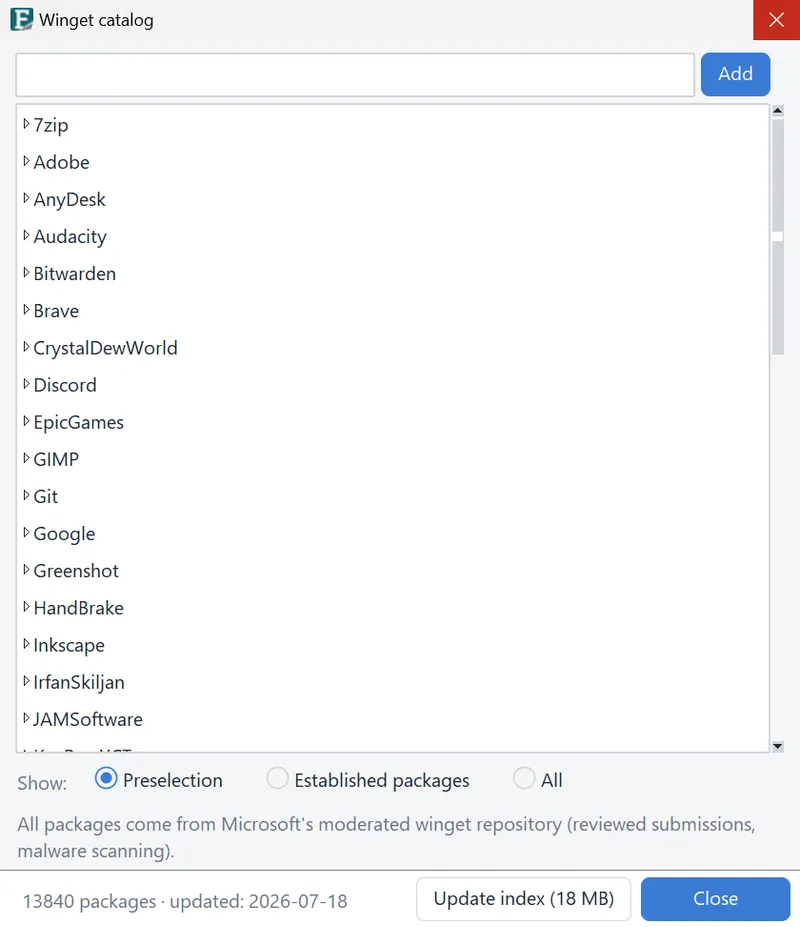
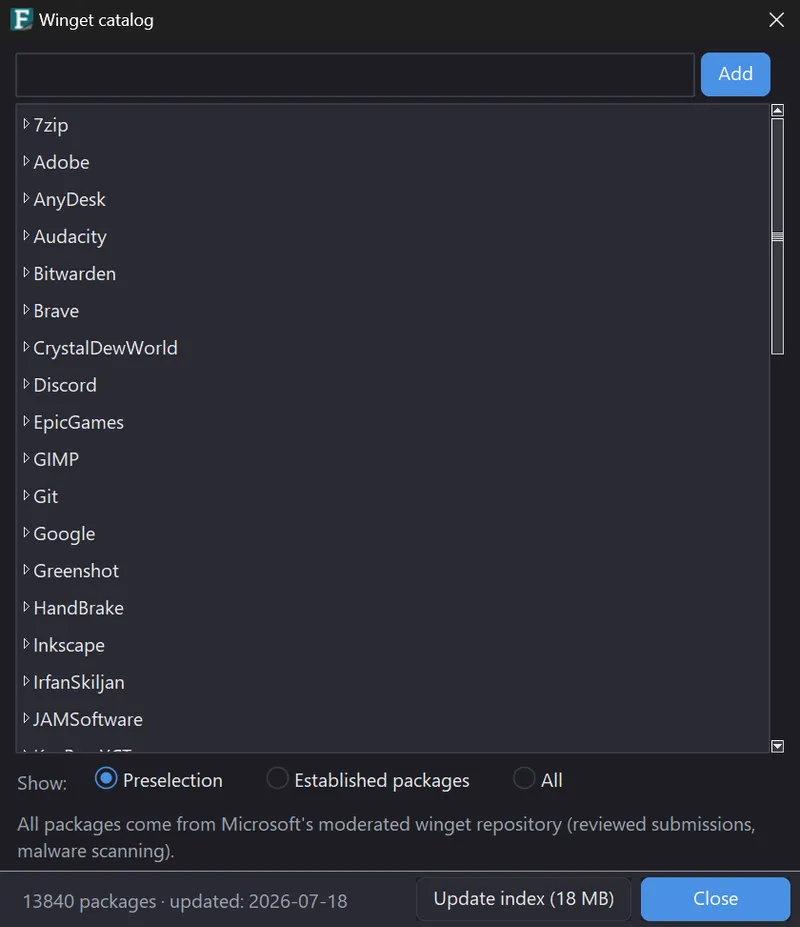
- Select Full catalog… to open the complete winget catalog. Search for further applications there and add them to your list.
- Look at the circle beside an application. It reads “✓ cached” when the application is downloaded and not downloaded yet when it is not. The bottom left shows the total size as “Cache: …”.
- Leave the page while applications are still missing to open Downloading software. It shows each application's state: waiting, downloaded, not downloaded, or canceled.
- Select Cancel in Downloading software to stop the download. Setup Foundry asks: “Cancel the download? The package currently downloading will finish, the rest will be deselected.” Select Cancel download or Keep downloading.
When all checked applications are already downloaded, Setup Foundry reports Everything is already downloaded.
Result
The installers are stored on this PC. Every medium built afterwards carries them. The target PC installs the applications without an internet connection.
Notes
Nothing is installed on your own PC. Setup Foundry downloads the installers only and does not run them.
A package is downloaded once and can be used as often as you like.
The more applications you select, the larger the medium becomes.
In Setup Foundry Pro, Office is the first row in the list. It has a pencil instead of a bin. Select it to open the Office settings. You cannot delete Office from the list.
In Setup Foundry Pro, Office is neither downloaded nor placed on the medium until you accept the Microsoft license terms. The row then reads Microsoft’s license terms not accepted yet. Accept them in the Office window via the pencil..
If it does not work
- A package cannot be deleted: Setup Foundry reports “The package is still used … . Disable it there before deleting it.” The message names the place.
- An application is missing from the list: Search for its current name through Full catalog….
- A package stays not downloaded: Setup Foundry fetches it again on the next attempt. Without the file, the application is not included on the medium.
- The medium is larger than expected: The installers of the checked applications are on the medium. Select fewer applications to make it smaller.