

Documentation · Installation
Create a USB drive
Write your configured Windows installation to a USB drive that starts a computer.
since 0.9.7.6
Purpose
The target computer boots from the finished USB drive, and Windows is set up without user interaction.
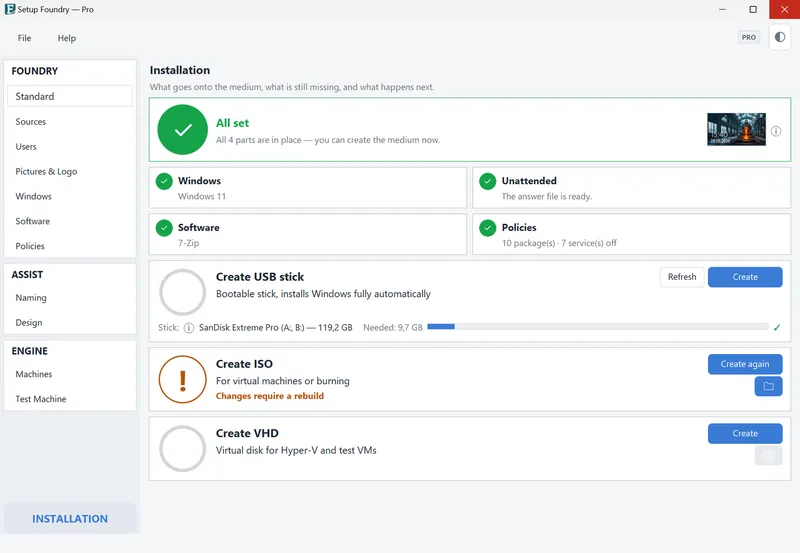
You can find this feature on the Installation page, the bottom entry in the sidebar, in the Create USB drive section. The section displays Bootable USB drive for Windows setup (erases the drive).
Steps
- Plug the USB drive into a USB port.
- Open the Installation page.
- Look at the box at the top to see whether everything is ready.
- Click Refresh so that the drive appears on the USB drive: line.
- If several drives are connected, select the correct drive from the list. You cannot type in the list.
- Read the “Required space: …” capacity line, the bar, and the assessment.
- Click Create or, if you have already created a drive, Create again.
- If Setup Foundry reports USB drive without an ID, the drive has no hardware ID by which it can be recognised later. You can continue in every edition with Use anyway; another drive is the safer choice.
- Confirm the erase prompt: Type the word delete into Type the word: and click Irreversibly erase drive.
Result
Setup Foundry displays Your USB drive is ready. and “Created in …”.
It then displays Writing complete. You can safely remove the USB drive. and Plug the USB drive into the target device and boot from it.
Notes
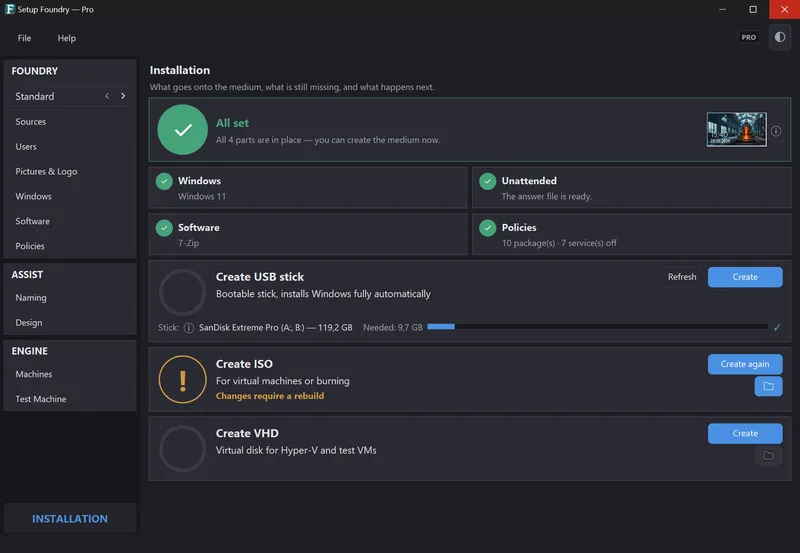
The box at the top of the page shows whether all four required parts are ready. If anything is missing, it states how many parts are ready and which information is still needed.
The four parts are called Windows, Unattended installation, Software, and Policies. Each part states its status, for example The answer file is ready. or No software selected..
If no drive is connected, the section displays No USB drive connected., and Create is disabled. Only Refresh remains available.
The capacity indicator displays one of these assessments:
- ✓: the drive is large enough, a check mark.
- ⚠ Tight fit: {reserve} free: only little headroom is left; use a larger drive to be safe.
- “✗ Too small, … missing.”
Caution: The card itself shows no erase warning. The erase prompt is called USB drive will be erased, names the drive, and warns in one red line: All data on the USB drive will be permanently lost.
Irreversibly erase drive remains disabled until the word is correct. Case does not matter.
The build runs in the background: You can keep working in the meantime. The media is created in the background. Setup Foundry builds only one medium at a time.
The progress indicator names these steps:
- Preparing your work folder
- Checking the boot image
- Rebuilding the boot image (one to two minutes)
- Erasing and repartitioning the USB drive
- Writing the boot files
- Copying Windows files (longest step)
- Providing profile data
- Finishing the media
Copying the Windows files takes most of the time.
Install Assist handles the final tasks on the target computer. It creates the user accounts, sets the computer name, and completes setup.
If it does not work
- No USB drive connected.: Plug a drive into a USB port and click Refresh.
- “✗ Too small, … missing.”: The message states the missing space. Select fewer programs or use a larger drive. The build does not start in this case.
- The selected USB drive is no longer connected. Select a USB drive again.: The drive was disconnected during the process. Check the connection and select the drive again.
- Installation media are already being created. Please wait until the process is complete.: Wait for the current build to finish.
- “The media is incomplete; missing: …”: The build was stopped so that no incomplete medium is delivered. Details are in the log.
- Administrator password is missing.: Set a password with at least four characters in the setup wizard or under Your Details.
- No Windows source selected.: Set a Windows source under Sources.