

Documentation · Foundry
PC information
Registered user, company, manufacturer and the support details for the finished Windows.
since 0.9.8.1
Purpose
You decide which registered user, company, and manufacturer are included in the finished Windows. In Setup Foundry Pro, you also set the device's support details.
Availability
Registered owner (not a sign-in account): can be changed in every edition.
Company (optional): and Manufacturer: can only be changed in Setup Foundry Pro. In Setup Foundry Free and Home, both fields are visible, show their value, and are disabled.
The support fields can only be changed in Setup Foundry Pro. In Setup Foundry Free and Home, they are read-only. There is no Save button. Below them is the line “Editing the support details — not available in this edition”.
Steps
- Open Settings from the File menu.
- Fill in the fields in the PC information section.
- Click Save.
- In Setup Foundry Pro, fill in the fields in the Support section.
- Click Save.
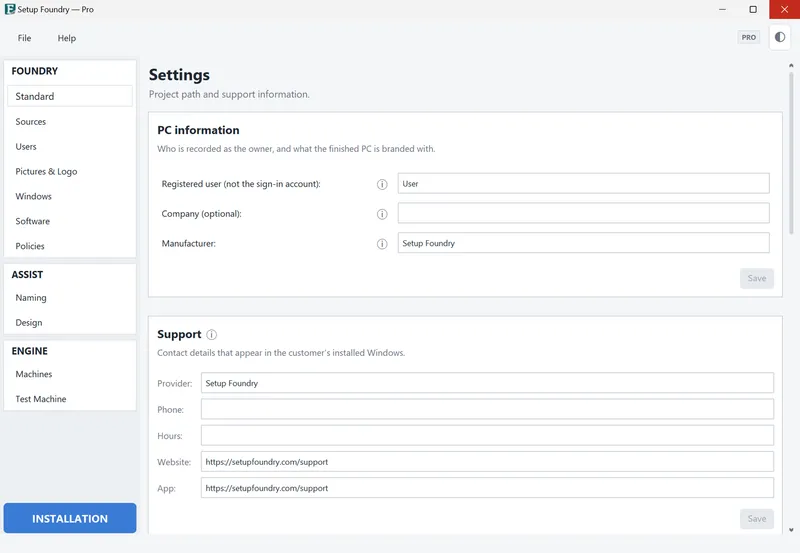
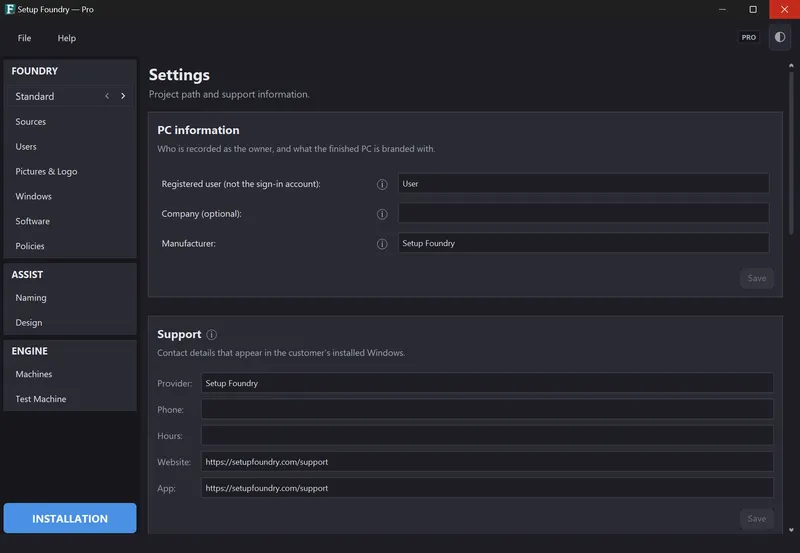
The Settings page has no entry in the sidebar. Below its title, you see Work folder and support information.
The first section is called PC information. Below its heading, the app says Windows lists these details as the finished PC’s owner and manufacturer.. The values belong to the currently set installation profile.
- Registered owner (not a sign-in account): records the name as the registered user in Windows. The field creates no sign-in account. You sign in to the finished PC with the built-in administrator account. Its name is on the Users page in the Administrator name: field.
- Company (optional): is written during the Windows installation and shown in the system information.
- Manufacturer: is written during the Windows installation and shown as the manufacturer in the system information.
An info symbol is behind each of these fields. The Save button is on the right below the fields. It is disabled until you change something.
The second section is called Support. Below its heading, the app says Support details are added to the answer file and shown as the support contact in the installed Windows. They are preset and cannot be changed in Free and Home.
- Provider
- “Phone”
- “Support hours”
- Website
- “App”
The values appear in the finished Windows under the device's support information. Without an entry of your own, Setup Foundry records “Setup Foundry” as the provider and one setupfoundry.com address each for Website and “App”. “Phone” and “Support hours” stay empty.
In Setup Foundry Pro, the Save button is on the right below the fields. It is disabled until you change something.
Result
In the finished Windows, the registered user, company, and manufacturer are in the system information. The support details are under the support information.
The values are carried into the next medium you create. Media already created do not change.
Notes
The predefined support values go onto the medium in every edition, including Setup Foundry Pro, until you change them there.
If it does not work
- “Company” and “Manufacturer” cannot be clicked. These fields belong to Setup Foundry Pro.
- The Save button stays grey. You have not changed anything yet.
- The recorded user does not appear as a sign-in account on the finished PC. The field creates no account. The sign-in account is the administrator from the Users page.